
Widget integration
Capital API iframe widget integration
Setup
The Capital product UI integrates seamlessly with the Platform's interface through an iframe.
To ensure a cohesive user experience, the iframe UI is fully customized to align with the Platform's visual design system. Each element is tailored by us to fit within the Platform's branding while preserving an optimal flow for maximum conversion.
The only prerequisite to render is a valid signed link, which Platform can obtain for a Business using get Get current Offer API.
<iframe src="{signedLink}" />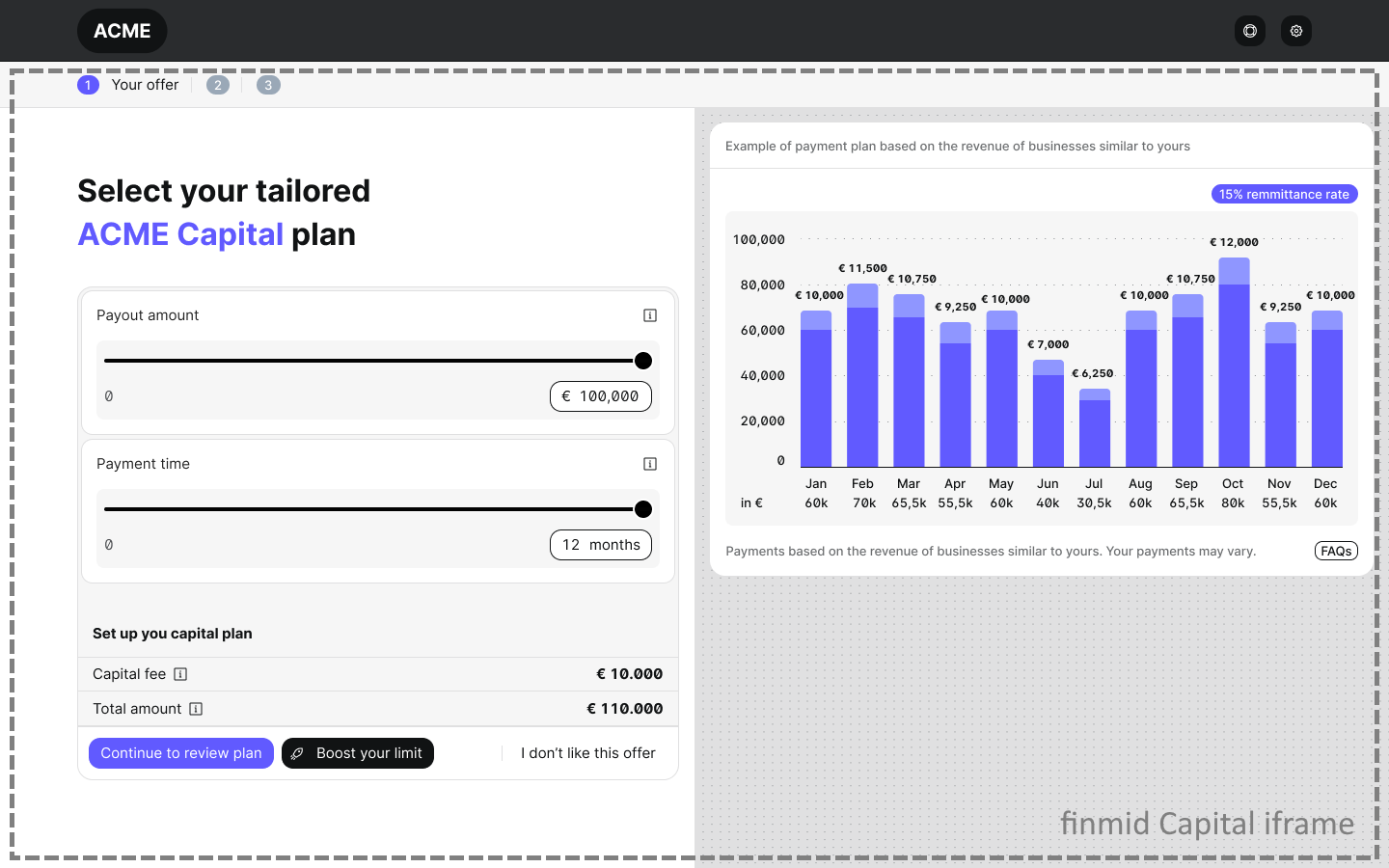
Events
The iframe reports the following events to the parent window via window.postMessage():
| Event | Payload | When |
|---|---|---|
| iframe rendered | { "type": "INITIALIZED" } | The iframe has loaded and is ready |
| Offers are shown | { "type": "OFFERS_SHOWN" } | The user sees the offer overview or renewal page |
| Onboarding opened | { "type": "ONBOARDING:OPENED", "data": { "onboardingId": "<uuid>" } } | The user enters the onboarding flow |
| Onboarding submitted | { "type": "ONBOARDING:SUBMITTED", "data": { "onboardingId": "<uuid>" } } | The user completes the onboarding bank connection step |
All events fire at most once per iframe mount.
Prerequisites
To receive iframe events, the Platform's must provide finmid a hostname which will be the ancestor of the iframe.
Capital iframe will send events using window.parent.postMessage(event, frameTargetOrigin), or special bridge objects when embedded in mobile apps.
The host window should listen for events like:
window.addEventListener("message", (event) => {
  if (event.origin !== "<finmid-iframe-origin>") return;
  console.log("Capital event:", event.data);
});
Focused flow URLs
In addition to the default widget, the iframe supports two focused flows that drop the Business directly into a specific journey. These are useful when the Platform already knows what action the Business should take next (for example, applying for a higher limit or accepting a specific Offer) and wants to skip the overview screens.
Both flows are opened by appending query parameters to the signed link returned by Get current Offer.
1. Capital Max — apply for a higher limit
Drops the Business into the Capital Max application flow (bank connection, document upload, review).
<signedLink>&f=CAPITAL_MAX| Param | Required | Description |
|---|---|---|
t | yes | The signed JWT token (already included in the signed link) |
f | yes | Must be set to CAPITAL_MAX |
When the Business completes the flow, the iframe emits:
{ "type": "FINISH_OFFER_FLOW_BUTTON_CLICK" }2. Signature — accept a specific Offer
Drops the Business onto a single screen with an Accept and submit button for the given Offer.
<signedLink>&f=SIGNATURE&offer_id=<OFFER_ID>| Param | Required | Description |
|---|---|---|
t | yes | The signed JWT token (already included in the signed link) |
f | yes | Must be set to SIGNATURE |
offer_id | yes | Id of the Offer being accepted. Without it, the Accept button is disabled |
use_of_funds | no | Comma-separated values pre-filling the use-of-funds selection, e.g. RENOVATIONS,OTHER |
use_of_funds_comment | no | Free-text comment pre-filling the use-of-funds comment field |
When the Business accepts the Offer, the iframe emits:
{ "type": "OFFER_ACCEPTED" }Listening for events
The focused flows use the same event channel as the default widget:
window.addEventListener("message", (event) => {
  if (event.origin !== "<finmid-iframe-origin>") return;

  if (event.data?.type === "OFFER_ACCEPTED") {
    // Signature flow done — close the iframe / refresh your UI
  }

  if (event.data?.type === "FINISH_OFFER_FLOW_BUTTON_CLICK") {
    // Capital Max flow done — close the iframe / refresh your UI
  }
});
For mobile webviews, the same messages are delivered via window.finmidBridge (Android) and window.webkit.messageHandlers.finmidBridge (iOS).
Two things to keep in mind
- Always include
offer_idin the Signature URL — without it the Accept button is disabled.- Don't reload the iframe with a shorter URL. If you reload, pass the same query string you opened with, otherwise the flow context is lost.
Updated 6 months ago